 Foam-wattenstaafjes voor cleanrooms, Polyester wattenstaafjes, Fabrikant van printerreinigingssets | MediTech
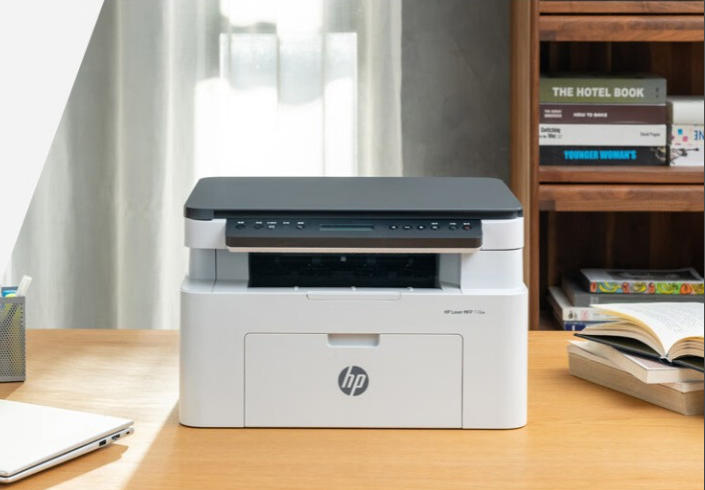
HP-printers worden veel gebruikt in woningen, kantoren, en bedrijven voor het afdrukken van documenten, foto's, en afbeeldingen. Echter, na verloop van tijd, gedroogde inkt, stof, en resten kunnen de spuitmondjes van de printkop verstoppen, resulting in streaks, faded colors, missing lines, or poor print quality.
Regular printhead maintenance can help restore printing performance and extend the life of your printer. In deze gids, we’ll explain how to clean an HP printer printhead using the built-in cleaning function and manual cleaning methods, along with tips for preventing future clogs.
1. Signs That Your HP Printer Printhead Needs Cleaning
The printhead delivers ink onto paper through tiny nozzles. When these nozzles become blocked or contaminated, printing quality may deteriorate.
Common signs include:
- Streaky printing: Horizontal lines or uneven ink distribution appear on printed pages.
- Ontbrekende kleuren: One or more colors are faded or absent.
- Faded text or images: Prints appear lighter or less sharp than usual.
- Blank areas: Parts of printed documents or images are missing.
- Inconsistent print quality: Printing results vary from page to page.
These problems may be caused by dried ink, stof, prolonged printer inactivity, or other printhead issues.
2. How to Clean an HP Printer Printhead Using the Built-in Function
The built-in printhead cleaning utility is usually the first method to try. HP printers may offer cleaning options through the printer’s control panel, HP App, or printer software.
Method 1: Using the Printer Control Panel
- Turn on your HP printer and load paper.
- Open the Setup of Instellingen menu.
- Navigate to Printeronderhoud of Hulpmiddelen.
- Selecteer Clean Printhead of Clean Printheads.
- Follow the on-screen instructions and wait for the cleaning cycle to finish.
- Print a test page to check the results.
Method 2: Using the HP App
- Open the HP App and select your printer.
- Access Printer Settings of Advanced Settings.
- Find Printeronderhoud of Print Quality Tools.
- Select the printhead cleaning option.
- Follow the instructions and print a test page.
Method 3: Using Windows Printer Software
- Press
Windows + R, typecontrol printers, and press Enter. - Select your HP printer.
- Open HP Printer Assistant or printer preferences.
- Navigate to Maintain Your Printer, Device Services, or a similar maintenance menu.
- Selecteer Clean Printheads or the available cleaning option.
- Complete the procedure and print a test page.
Menu names and available features vary depending on your HP printer model and software version.
3. How to Manually Clean an HP Printer Printhead
If automatic cleaning does not improve print quality, manual cleaning may help remove stubborn ink residue or contaminants from accessible surfaces. Echter, printheads are delicate, so always check your printer’s manual before attempting manual cleaning.
Materials Needed
- Lint-free cleaning swab or foam-tipped cleaning swab
- Distilled water or a manufacturer-approved cleaning solution, if recommended
- Handschoenen, indien nodig
- Clean working surface
Step-by-Step Manual Cleaning
Stap 1: Schakel de printer uit
Turn off your HP printer and unplug the power cable before starting maintenance.
Stap 2: Access the Printhead or Cartridges
Open the printer’s access door and wait for the cartridge carriage to stop. Remove cartridges or accessible components only if your printer’s instructions allow it.
Stap 3: Inspect the Printhead
Check for visible ink buildup, gedroogde inkt, or debris. Avoid touching the nozzle plate or electrical contacts directly.
Stap 4: Prepare the Cleaning Swab
Use a suitable cleaning swab. If using a pre-saturated IPA swab, ensure it is not excessively wet and that alcohol is compatible with the surface being cleaned.
Stap 5: Gently Clean the Accessible Surface
Gently wipe the accessible area to remove residue and contaminants. Avoid applying excessive pressure or scrubbing the delicate nozzle plate.
For compatible printer components, MediTech Foam Tipped IPA Clean Swabs provide a convenient option for targeted cleaning.
MediTech IPA Clean Swab met schuimtip
- Voorverzadigd met 99.7% isopropylalcohol (IPA).
- Soft foam tip designed for controlled cleaning.
- Low-lint construction to help minimize fiber contamination.
- Individually packaged for convenient use.
- Suitable for selected printer components, elektronica, and other compatible surfaces.
Explore the product: MediTech IPA Clean Swab met schuimtip
Stap 6: Allow the Components to Dry
Allow the cleaned surfaces to dry completely before reinstalling cartridges or reconnecting the printer.
Stap 7: Reinstall and Test
Reinstall the cartridges, close the printer cover, reconnect the power, and turn on the printer. Print a test page to check whether print quality has improved.
Important: IPA is not suitable for every HP printhead, nozzle plate, coating, seal, or plastic component. Always follow the printer manufacturer’s cleaning instructions and confirm chemical compatibility before using alcohol.
4. What to Avoid When Cleaning an HP Printer Printhead
To prevent damage during maintenance:
- Avoid tap water, which may leave mineral deposits.
- Avoid paper towels or tissues that may shed fibers.
- Do not apply excessive pressure to the printhead.
- Do not pour cleaning liquid directly onto printer components.
- Avoid incompatible solvents that may damage coatings, plastics, or seals.
- Avoid running too many automatic cleaning cycles, as they consume ink.
5. How to Prevent HP Printer Printhead Clogging
Preventive maintenance can help reduce printhead problems and unnecessary cleaning.
- Regelmatig afdrukken: Print a few pages every week to help prevent ink from drying inside the nozzles.
- Use compatible ink: Choose ink cartridges recommended for your HP printer model.
- Keep the printer clean: Reduce dust and debris around the printer.
- Shut down properly: Use the printer’s power button to allow it to complete its shutdown process.
- Perform maintenance when needed: Run nozzle checks and cleaning procedures when print quality deteriorates.