 Cotonetes de espuma para salas limpas, Cotonetes de poliéster, Fabricante de kit de limpeza de impressora | MediTech
Manter sua impressora de cartões Magicard Rio Pro ID limpa é essencial para manter a alta qualidade de impressão, prolongando a vida útil da impressora, e reduzindo o tempo de inatividade dispendioso. Pó, resíduo adesivo, restos de cartão, e partículas de fita podem se acumular dentro da impressora com o tempo, afetando a alimentação do cartão, qualidade de imagem, e desempenho do cabeçote de impressão.
A Magicard recomenda limpar a impressora Rio Pro sempre que você substituir a fita de filme corante. Neste guia, orientaremos você durante todo o processo de limpeza e recomendaremos suprimentos de limpeza profissionais da MediTech para ajudar a manter sua impressora operando com desempenho máximo.
Por que a limpeza regular do Magicard Rio Pro é importante
A manutenção de rotina ajuda:
- Mantenha-se afiado, impressão de cartões de alta qualidade
- Evite defeitos e riscos de impressão
- Reduza congestionamentos de cartões e problemas de alimentação
- Prolongue a vida útil do cabeçote de impressão
- Melhore a confiabilidade geral da impressora
- Minimize reparos dispendiosos e tempo de inatividade
Para melhores resultados, limpe sua impressora sempre que instalar uma nova fita.
Ferramentas necessárias para limpeza
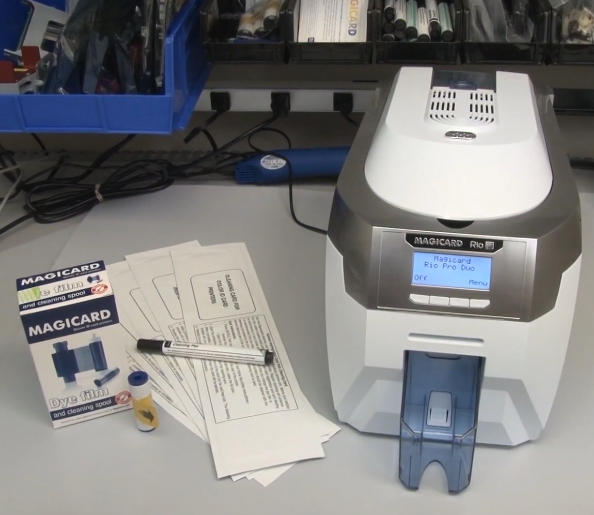
Antes de começar, prepare os seguintes itens:
- Novo cartão de limpeza Magicard Rio Pro
- Caneta para limpeza de cabeçote de impressão
- Novo rolo de limpeza pegajoso azul (incluído com cada kit de fita)
- Nova fita de filme corante
- Impressora Magicard Rio Pro ligada
Etapa 1: Remova a fita e o rolo adesivo
Comece preparando a impressora para limpeza:
- Remova o coletor de cartões da impressora.
- Abra a tampa da impressora.
- Remova a fita de filme corante existente.
- Remova o rolo adesivo azul localizado abaixo da fita.
- Remova cuidadosamente a haste de metal do rolo azul.
- Coloque o eixo de metal em um local seguro para reinstalação posterior.
Neste ponto, a impressora está pronta para o processo de limpeza.
Etapa 2: Inicie o processo de limpeza automática dos rolos
Usando o painel de controle do Rio Pro:
- Navegue até o menu da impressora.
- Selecione “Limpe os rolos.”
- Siga as instruções na tela até que a impressora indique que está pronta.
Próximo:
- Abra o pacote do cartão de limpeza.
- Remova o cartão de limpeza.
- Selecione “Sim” no visor da impressora.
- Insira a extremidade estreita do cartão de limpeza no slot frontal do cartão.
A impressora puxará automaticamente o cartão de limpeza pelo caminho de transporte.
Como funciona o cartão de limpeza
O cartão de limpeza pré-saturado contém álcool isopropílico de alta pureza (IPA) que dissolve e remove:
- Partículas de poeira
- Resíduo de fita
- Restos de cartão
- Óleos e contaminantes
Para uma limpeza ideal, vire o cartão de limpeza e repita o processo 2 para 4 vezes.
Este procedimento simples melhora drasticamente a limpeza dos rolos e o desempenho do transporte do cartão.
Etapa 3: Limpe manualmente os rolos sujos
Se os rolos da sua impressora estiverem muito contaminados, a limpeza automática pode não ser suficiente.
Limpe o rolo de transporte principal
- Saia do modo de limpeza automática.
- Selecione “Mover cartão” no menu principal.
- Dobre o cartão de limpeza ao meio.
- Pressione o cartão de limpeza firmemente contra o rolo de transporte central.
- Segure um dos “Mover cartão” botões.
- Mova o cartão de limpeza para frente e para trás por aproximadamente 15–20 segundos.
Este processo de limpeza manual remove o acúmulo de sujeira teimosa que a limpeza automática pode deixar passar.
Limpe o rolo de admissão traseiro
Próximo, limpe o rolo de alimentação traseiro:
- Vire a impressora.
- Pressione e segure o botão para cima “Mover cartão” botão.
- Aplique o cartão de limpeza contra o rolo de entrada traseiro.
- Continue limpando por 15–20 segundos.
Muitas vezes você notará sujeira e detritos visíveis transferidos para o cartão de limpeza após este processo.
Etapa 4: Limpe a cabeça de impressão Magicard Rio Pro
O cabeçote de impressão é o componente mais crítico da sua impressora e requer manutenção cuidadosa.
Usando uma caneta de limpeza de cabeçote de impressão
Para limpar o cabeçote de impressão:
- Localize o conjunto do cabeçote de impressão.
- Use uma caneta de limpeza de cabeçote de impressão saturada com 99.9% IPA.
- Limpe suavemente a superfície do cabeçote de impressão revestida de Teflon.
- Remova qualquer poeira, resíduo adesivo, ou contaminação.
Dicas importantes
- Sempre limpe em uma direção suave.
- Evite pressão excessiva.
- Nunca use materiais abrasivos.
- Deixe o cabeçote secar completamente antes de imprimir.
A limpeza regular do cabeçote de impressão ajuda a evitar defeitos de impressão e prolonga significativamente a vida útil do cabeçote.
Etapa 5: Instale o novo rolo adesivo
Após a conclusão da limpeza:
- Remova o novo rolo adesivo azul da embalagem da fita.
- Insira o eixo de metal removido anteriormente no novo rolo.
- Remova toda a embalagem protetora.
- Encaixe o rolo na posição diretamente acima do rolo laranja em direção à parte traseira da impressora.
O rolo adesivo coleta continuamente poeira e detritos dos cartões antes da impressão, ajudando a proteger o cabeçote de impressão.
Etapa 6: Instale a nova fita de filme corante
Agora instale a fita de reposição:
- Remova a nova fita de filme corante da embalagem.
- Remova qualquer embalagem protetora.
- Instale a fita de acordo com o caminho da fita da impressora.
- Verifique se a fita está encaixada corretamente.
Uma vez instalado:
- Feche a tampa da impressora com cuidado.
- Reinstale o coletor de cartões.
- Confirme se a impressora está pronta para operação.
Melhores práticas para manutenção do Magicard Rio Pro
Para maximizar o desempenho da impressora:
- Limpe a impressora sempre que substituir a fita.
- Use cartões de limpeza e canetas de limpeza de cabeçote de impressão de alta qualidade.
- Armazene os cartões em um ambiente limpo.
- Substitua os rolos pegajosos regularmente.
- Evite tocar na superfície do cabeçote de impressão.
- Realize inspeções de rotina quanto ao acúmulo de poeira.
Seguir estes procedimentos de manutenção pode reduzir significativamente os problemas de impressão e melhorar a qualidade do cartão..
Por que escolher os suprimentos de limpeza para impressoras de cartões MediTech?
MediTech fornece soluções de limpeza profissional para impressoras de cartões de identificação, incluindo Magicard, Evolis, Zebra, Cartões de dados, Fargo, e outras marcas líderes.
Vantagens do produto MediTech
- 99.9% Solução de limpeza IPA
- Excelente desempenho de remoção de detritos
- Seguro para componentes sensíveis da impressora
- Compatível com a maioria das marcas de impressoras de cartões
- Suporte OEM e ODM disponível
- Fabricado sob sistemas de qualidade certificados pela ISO
Produtos recomendados
- Caneta de limpeza de cabeçote de impressão MediTech
- Kits completos de limpeza para impressoras de cartões MediTech
- Rolo de limpeza adesivo MediTech Magicard
O uso regular desses produtos ajuda a manter o desempenho ideal da impressora e prolonga a vida útil do equipamento.