 Пенные тампоны для чистых помещений, полиэфирные тампоны, Производитель комплектов для чистки принтера | Медитек
Поддержание чистоты принтера ID-карт Magicard Rio Pro необходимо для поддержания высокого качества печати., продление срока службы принтера, и сокращение дорогостоящих простоев. Пыль, остатки клея, карточный мусор, и частицы ленты могут со временем накапливаться внутри принтера., влияет на подачу карт, качество изображения, и производительность печатающей головки.
Magicard рекомендует чистить принтер Rio Pro при каждой замене ленты с красящей пленкой.. В этом руководстве, мы проведем вас через весь процесс очистки и порекомендуем профессиональные чистящие средства от MediTech, которые помогут поддерживать максимальную производительность вашего принтера..
Почему важна регулярная чистка Magicard Rio Pro
Регулярное техническое обслуживание помогает:
- Поддерживать острый, качественная печать карточек
- Предотвращение дефектов печати и полос
- Уменьшите застревание карточек и проблемы с подачей
- Продлите срок службы печатающей головки
- Повышение общей надежности принтера
- Сведите к минимуму дорогостоящий ремонт и время простоя
Для достижения наилучших результатов, чистите принтер каждый раз, когда устанавливаете новую ленту.
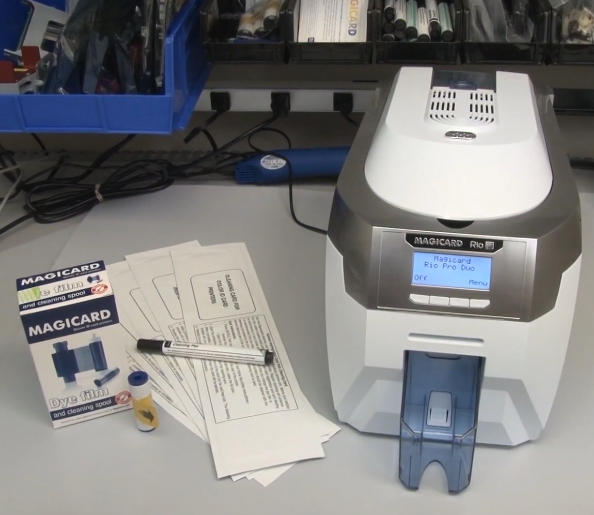
Инструменты, необходимые для очистки
Прежде чем начать, подготовьте следующие предметы:
- Новая чистящая карта Magicard Rio Pro.
- Ручка для очистки печатающей головки
- Новый липкий чистящий валик синего цвета. (входит в каждый комплект лент)
- Новая лента с красящей пленкой.
- Принтер Magicard Rio Pro включен
Шаг 1: Снимите ленту и липкий валик.
Начните с подготовки принтера к чистке.:
- Извлеките лоток для карточек из принтера..
- Откройте крышку принтера.
- Удалите существующую ленту с красящей пленкой..
- Снимите синий липкий валик, расположенный под лентой..
- Осторожно снимите металлический вал с синего ролика..
- Поместите металлический вал в безопасное место для последующей повторной установки..
В этот момент, принтер готов к процессу очистки.
Шаг 2: Запустите процесс автоматической очистки валиков
Использование панели управления Rio Pro:
- Перейдите в меню принтера..
- Выбирать “Чистые ролики.”
- Следуйте инструкциям на экране, пока принтер не сообщит, что он готов..
Следующий:
- Откройте упаковку чистящей карты.
- Извлеките чистящую карту.
- Выбирать “Да” на дисплее принтера.
- Вставьте узкий конец чистящей карты в переднее гнездо для карт..
Принтер автоматически протянет чистящую карту по пути транспортировки..
Как работает чистящая карта
Предварительно насыщенная чистящая карта содержит изопропиловый спирт высокой чистоты. (ИПА) который растворяет и удаляет:
- Частицы пыли
- Остатки ленты
- Карточный мусор
- Масла и загрязнения
Для оптимальной очистки, переверните чистящую карту и повторите процесс. 2 к 4 раз.
Эта простая процедура значительно улучшает чистоту роликов и производительность транспортировки карт..
Шаг 3: Очистите грязные ролики вручную
Если ролики вашего принтера сильно загрязнены, автоматической очистки может быть недостаточно.
Очистка основного транспортного ролика
- Выход из режима автоматической очистки.
- Выбирать “Переместить карту” из главного меню.
- Сложите чистящую карту пополам..
- Плотно прижмите чистящую карту к центральному ролику транспортировки..
- Держите один из “Переместить карту” кнопки.
- Перемещайте чистящую карту вперед и назад примерно 15–20 секунд..
Этот процесс ручной очистки удаляет стойкие скопления грязи, которые могут быть пропущены при автоматической очистке..
Очистка заднего впускного ролика
Следующий, очистите задний подающий ролик:
- Переверните принтер.
- Нажмите и удерживайте кнопку вверх “Переместить карту” кнопка.
- Приложите чистящую карту к заднему всасывающему ролику..
- Продолжайте чистку в течение 15–20 секунд..
После этой процедуры вы часто заметите видимую грязь и мусор, перенесенные на чистящую карту..
Шаг 4: Очистка печатающей головки Magicard Rio Pro
Печатающая головка является наиболее важным компонентом вашего принтера и требует тщательного обслуживания..
Использование ручки для очистки печатающей головки
Очистка печатающей головки:
- Найдите узел печатающей головки.
- Используйте карандаш для чистки печатающих головок, смоченный 99.9% ИПА.
- Аккуратно протрите поверхность печатающей головки с тефлоновым покрытием..
- Удалите пыль, остатки клея, или загрязнение.
Важные советы
- Всегда чистите в одном плавном направлении.
- Избегайте чрезмерного давления.
- Никогда не используйте абразивные материалы.
- Перед печатью дайте печатающей головке полностью высохнуть..
Регулярная очистка печатающей головки помогает предотвратить дефекты печати и значительно продлевает срок службы печатающей головки..
Шаг 5: Установите новый липкий валик
После завершения очистки:
- Извлеките новый синий липкий валик из упаковки с лентой..
- Вставьте извлеченный ранее металлический вал в новый ролик..
- Снимите всю защитную пленку.
- Зафиксируйте ролик в положении непосредственно над оранжевым роликом в задней части принтера..
Клейкий валик непрерывно собирает пыль и мусор с карт перед печатью., помогает защитить печатающую головку.
Шаг 6: Установите новую ленту с красящей пленкой
Теперь установите сменную ленту:
- Извлеките новую ленту с красящей пленкой из упаковки..
- Снимите любую защитную упаковку.
- Установите ленту в соответствии с маршрутом ленты принтера..
- Убедитесь, что лента установлена правильно.
После установки:
- Аккуратно закройте крышку принтера.
- Переустановите лоток для карточек.
- Убедитесь, что принтер готов к работе.
Рекомендации по обслуживанию Magicard Rio Pro
Чтобы максимизировать производительность принтера:
- Очищайте принтер при каждой замене ленты..
- Используйте высококачественные чистящие карты и ручки для чистки печатающих головок..
- Храните карты в чистом месте..
- Регулярно заменяйте липкие ролики..
- Не прикасайтесь к поверхности печатающей головки..
- Выполняйте регулярные проверки на предмет скопления пыли..
Выполнение этих процедур обслуживания может значительно уменьшить проблемы с печатью и улучшить качество карт..
Почему следует выбирать чистящие средства для карточных принтеров MediTech?
MediTech предлагает профессиональные чистящие средства для принтеров удостоверений личности, включая Мэджикард, Эволис, Зебра, Датакарты, Фарго, и другие ведущие бренды.
Преимущества продукта MediTech
- 99.9% Чистящий раствор IPA
- Отличная производительность по удалению мусора
- Безопасно для чувствительных компонентов принтера.
- Совместимость с большинством марок карточных принтеров.
- Доступна поддержка OEM и ODM
- Изготовлено в соответствии с сертифицированной системой качества ISO.
Рекомендуемые продукты
- Ручка для чистки печатающих головок MediTech
- Полные комплекты для чистки карточных принтеров MediTech
- Ролик для чистки клея MediTech Magicard
Регулярное использование этих продуктов помогает поддерживать оптимальную производительность принтера и продлевает срок службы оборудования..